For iPad · iPhone · Mac
Handwritten notes,
connected.
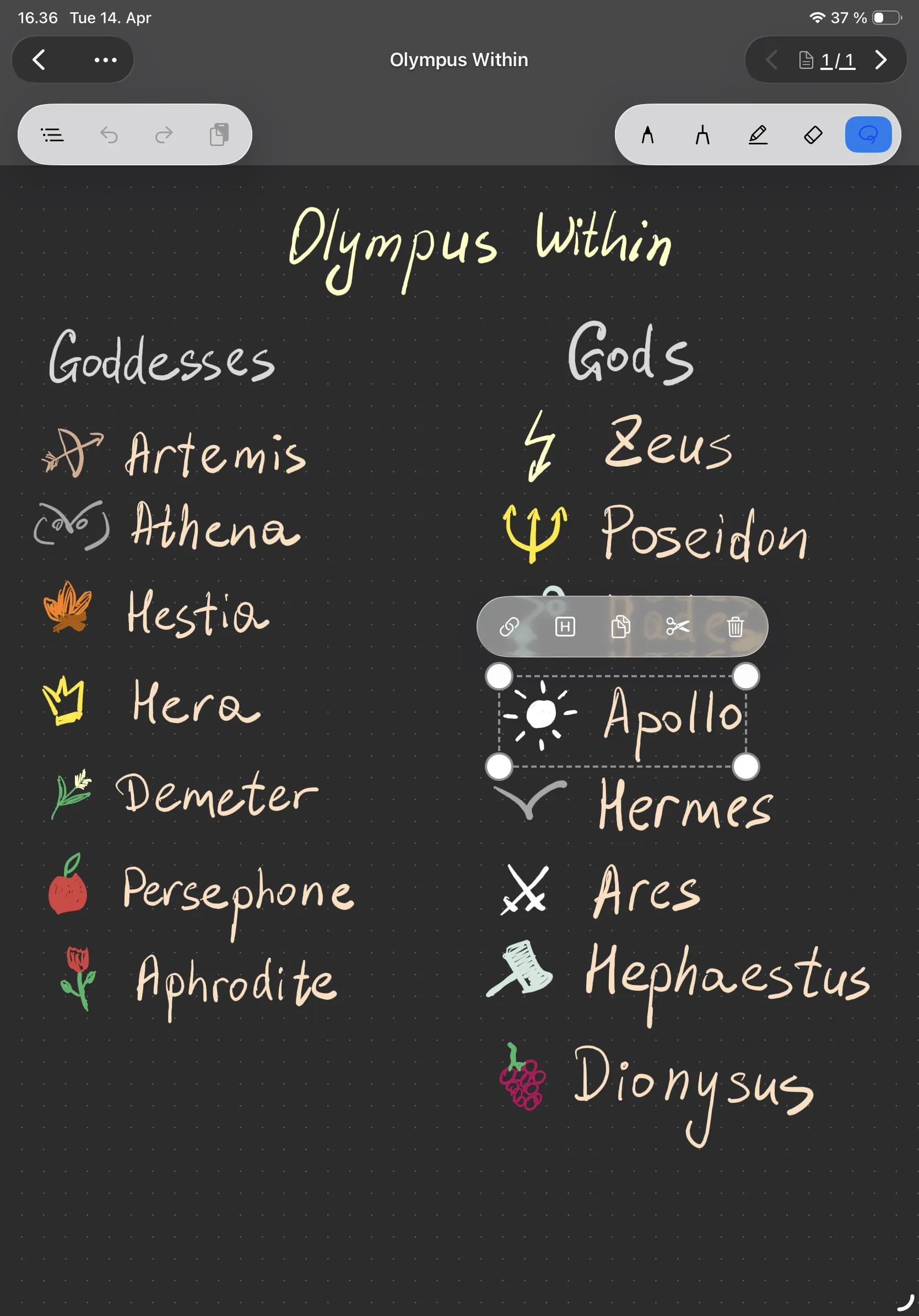
A notebook where you draw freely with Apple Pencil — then lasso any strokes and link them to another page. Like your brain actually works.
Demo
Core Feature
Lasso. Link.
Jump.
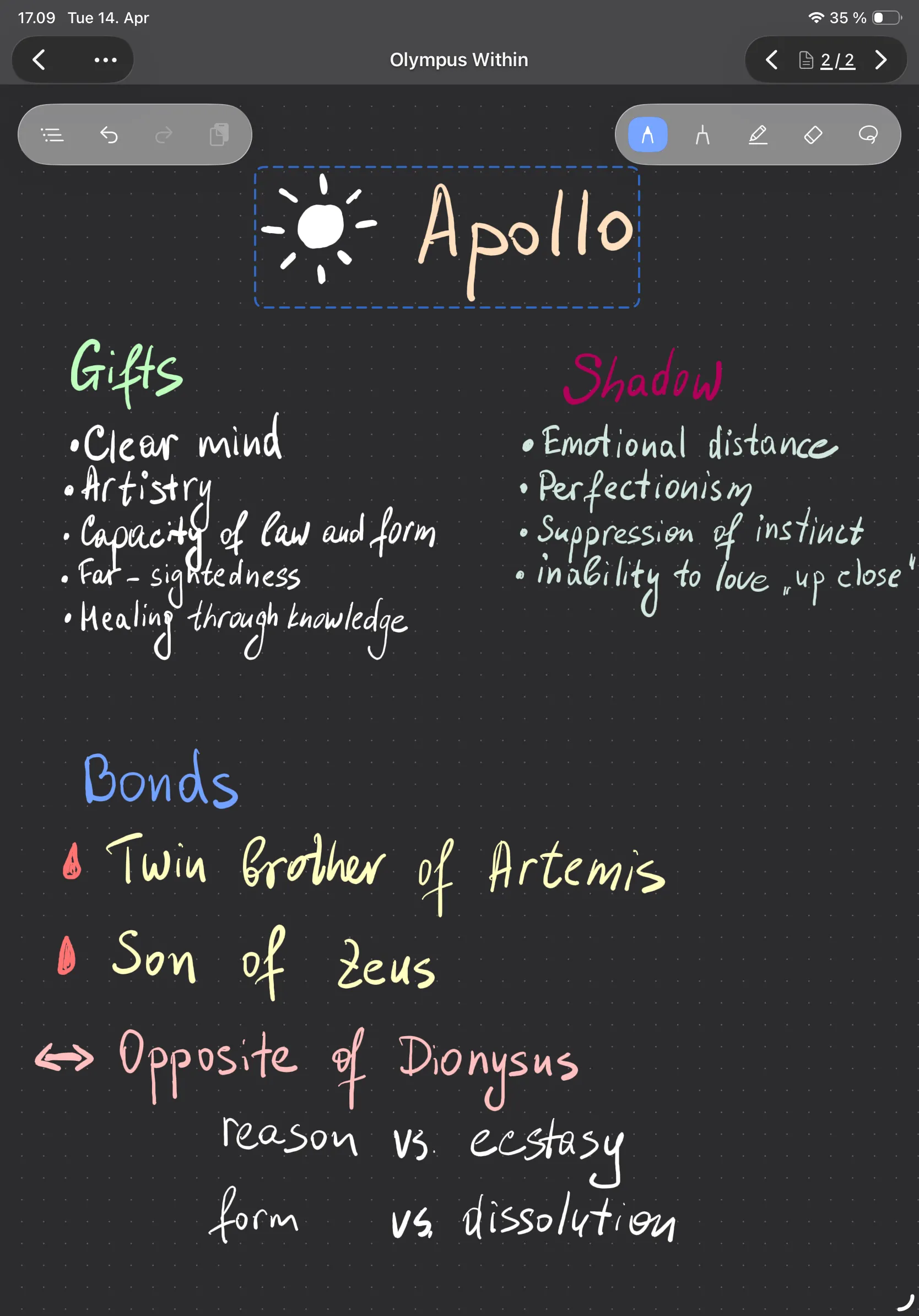
Select any strokes with the lasso tool. Create a link to a new or existing page — the selected strokes are copied there automatically. Tap the link to jump. Tap again to jump back.
Each page owns its links independently. Your notebook becomes a web of connected ideas, navigated with a single tap.
Structure
Organize with headers.
Navigate with the outline.
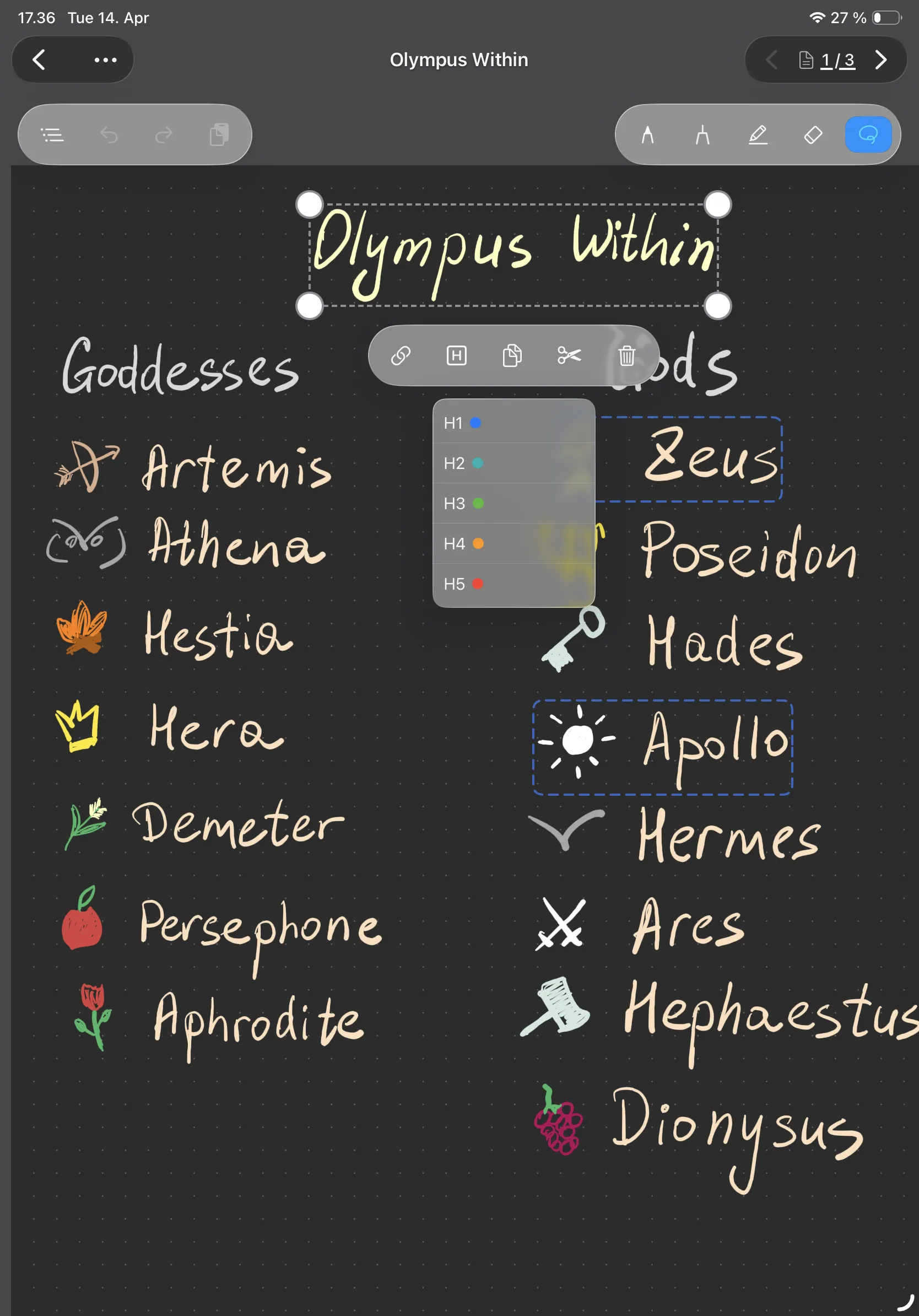
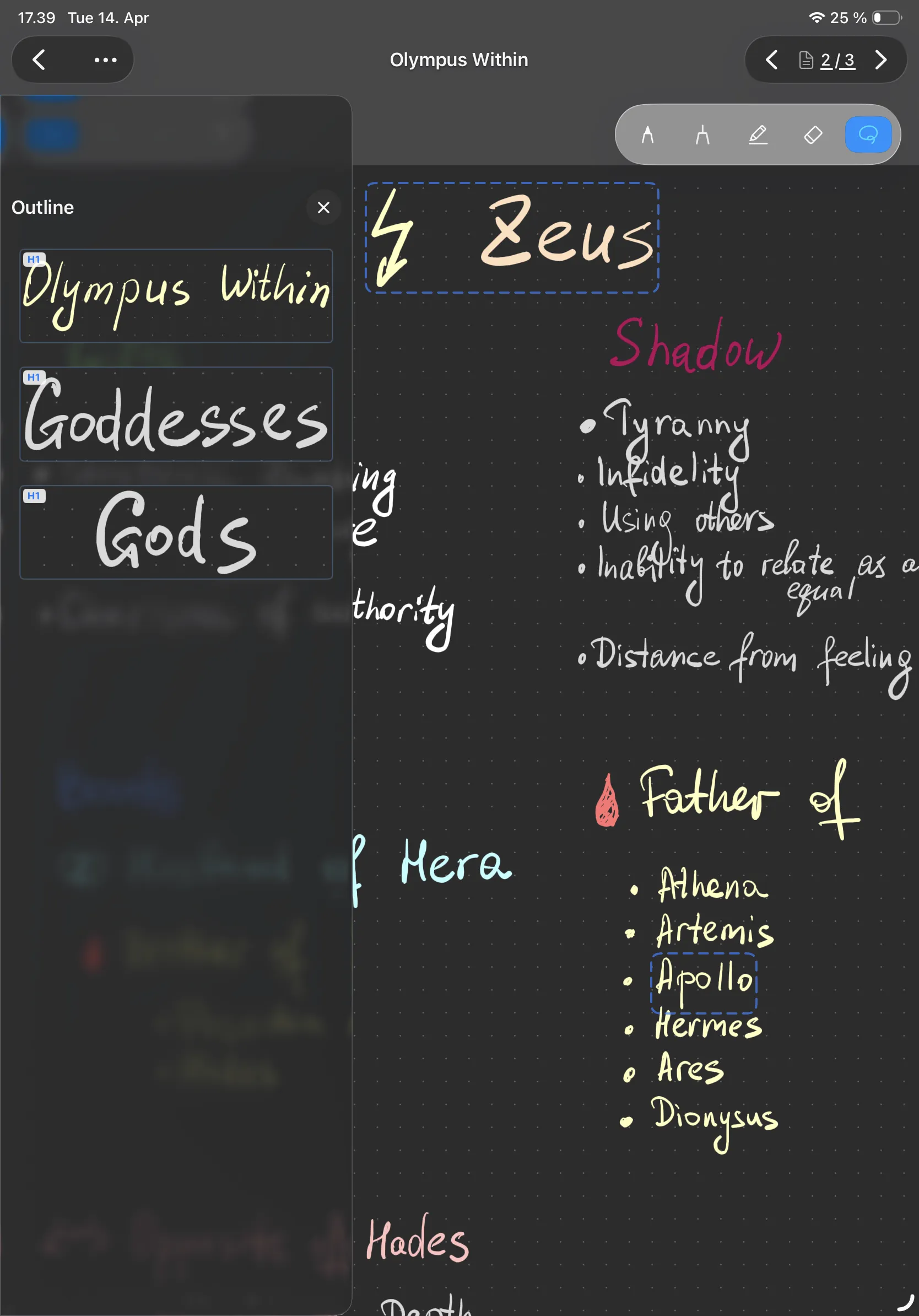
Assign header levels (H1–H5) to any page. Your notebook builds a navigable outline automatically — tap to see the full structure, drill into sections, jump to any page.
Links follow a thought. Headers show the shape. Together, they turn a notebook into a system.
Screenshots
Visual Graph
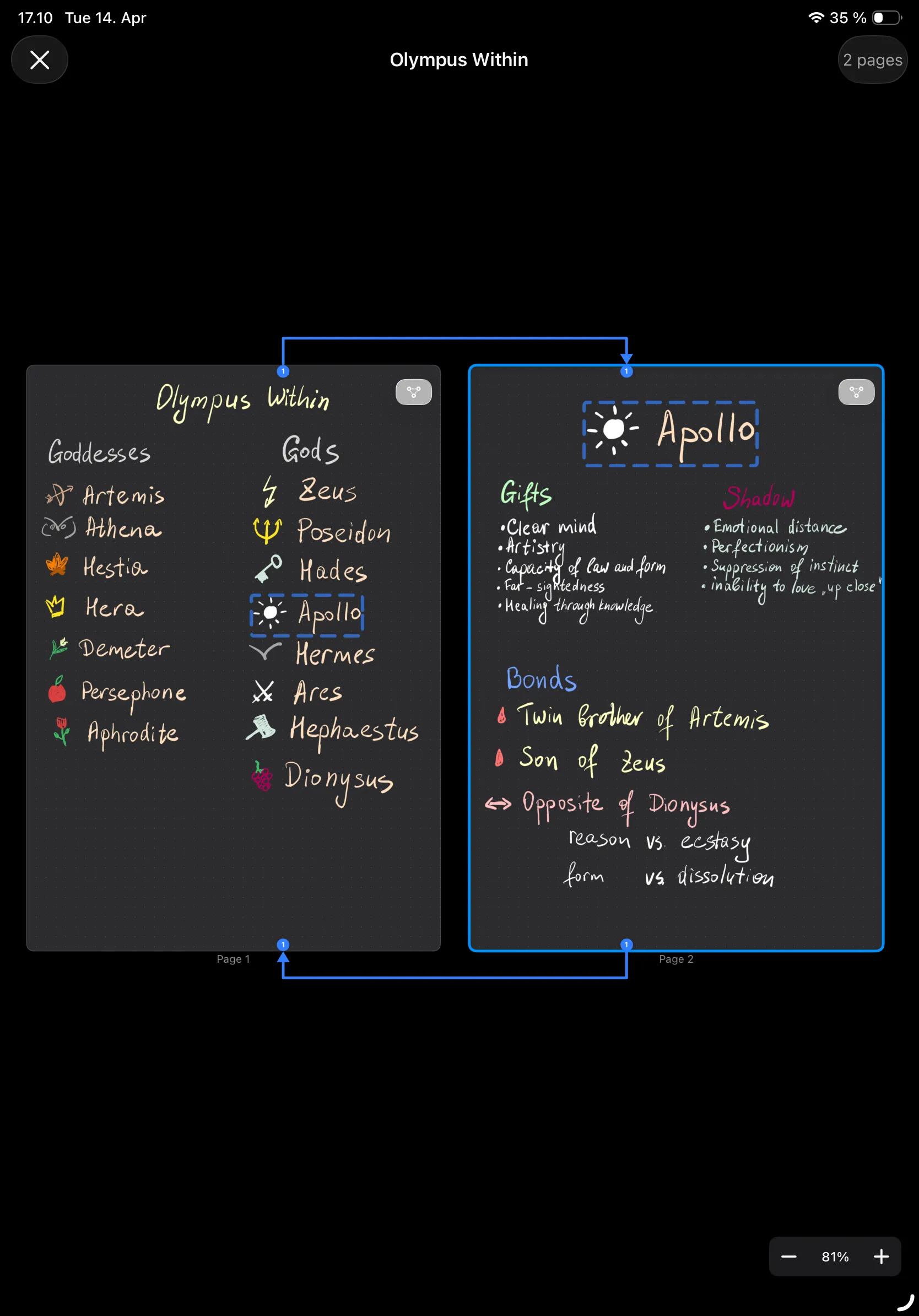
See every connection.
The page overview maps all links in your notebook as a visual graph — arrows show direction, cards show pages. Spot patterns, find gaps, navigate by tapping.
Screenshot
PDF Workflow
Pro
Import. Annotate.
Link. Export.
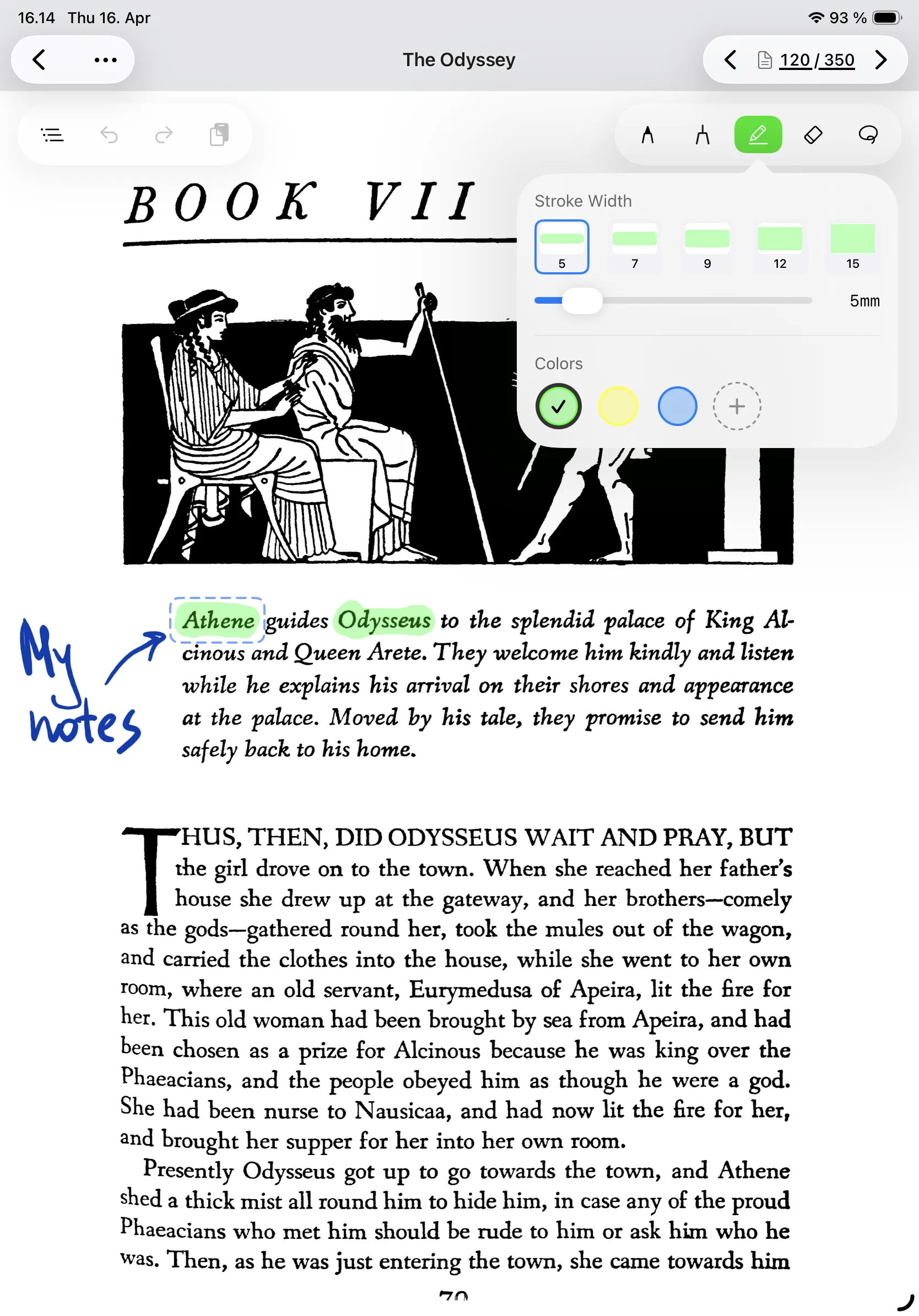
Bring any PDF into a notebook. Highlight, draw, and write on every page. The highlighter lifts actual pixels from the document — highlighted content becomes a visible, workable element.
Add headers to organize the PDF into sections. Create links between pages. Then export the annotated notebook as a new PDF with clickable cross-references and bookmarks.
PDF import and export require BindNotes Pro.
Screenshot
Performance
Built for Apple Pencil.
A custom Metal renderer built for handwriting. Pressure-sensitive. Pen, highlighter, eraser, lasso — every tool tuned for how you actually draw.
Stroke renderer
Pressure-sensitive
GPU-accelerated
How It Works
Three steps. That's it.
Draw
Write and sketch freely with Apple Pencil. Just a notebook — no special setup.
Lasso & Link
Select any strokes with the lasso tool. Create a link to a new or existing page — tap to jump.
Navigate
Tap any link to jump to the connected page. Build headers and an outline. Export as PDF.
Use Cases
Built for how you think.
Studying
Import your textbook PDF. Highlight key passages — the highlighter lifts the text right off the page. Link highlighted sections to your summary notes. Add headers to organize by chapter. When it's time to review, tap through your outline or follow links between connected topics.
Research
Import papers as PDFs. Annotate and highlight. Link sources to your synthesis pages. The page overview shows your entire web of references as a visual graph. Export the annotated collection as a PDF with clickable cross-references.
Brainstorming
Map out ideas across multiple pages and link them together. Follow a thread of thought without losing the big picture. See the full web of connections in the page overview graph.
Essay Writing
Link your outline to draft pages. Tap a section heading to jump straight to the full draft, then back to the outline. Use headers to structure your argument and the outline to navigate between sections.
Pricing
Free — no limits on note‑taking.
Everything you need to draw, link, and organize. No subscription. No account.
Free
Forever
Pro
One-time purchase
No subscription. Buy once, own forever.
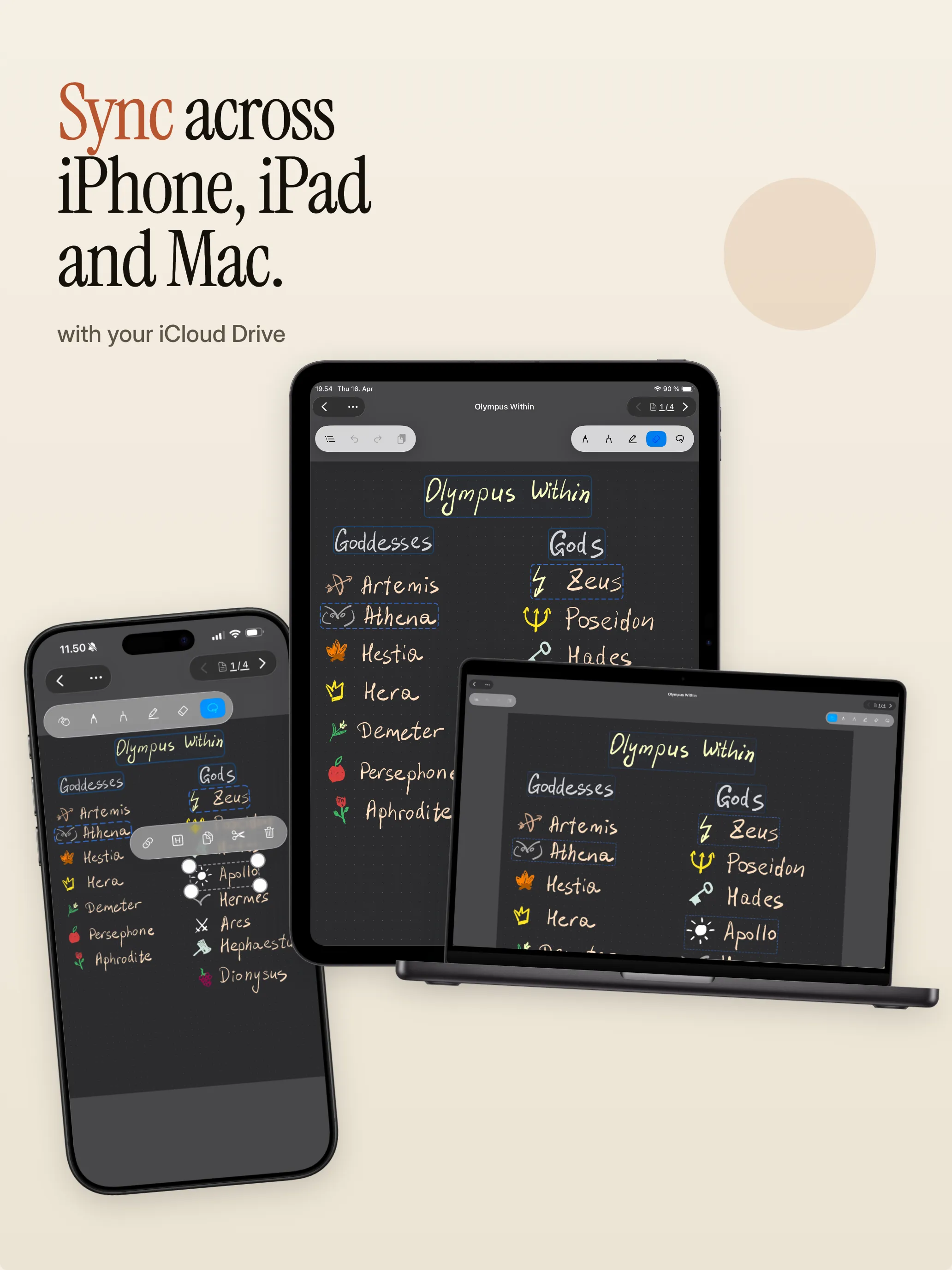
Syncs across all your devices.
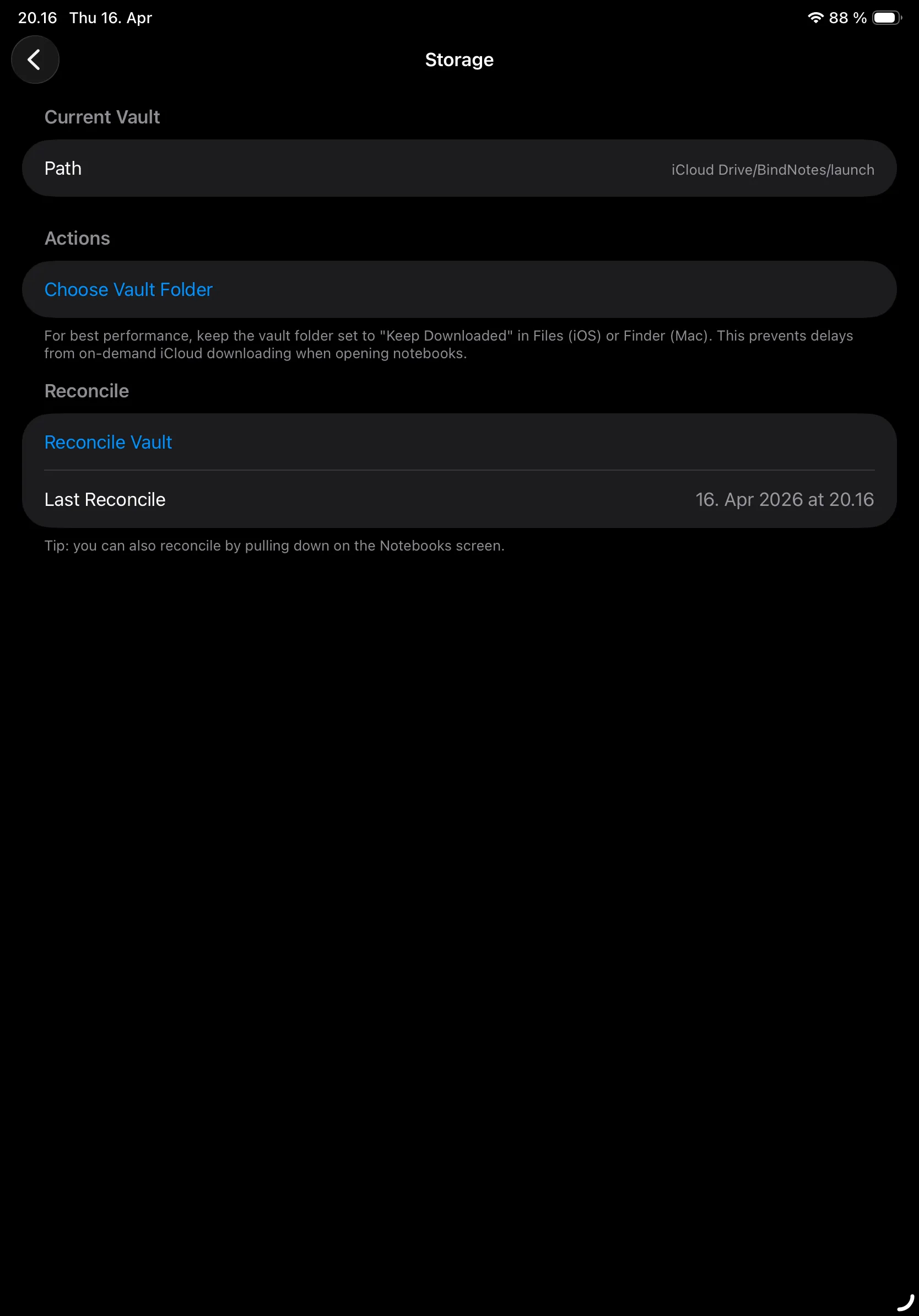
Your notebooks live in iCloud Drive. Open on one device, continue on another. No account. No setup. It just works.
Privacy
Your notes. Your device.
Nothing else.
BindNotes collects no data. No analytics. No tracking. No account required. Your notebooks are stored on your device or in your iCloud Drive — we have no server and no access to your files.
Read our privacy policyWhat BindNotes is (and isn't)
It is
- A regular handwritten notebook, enhanced with page-to-page links
- Apple Pencil-first, designed for iPad
- Page-based — each page is a document, not a node on a canvas
- Supernote-style linking, but on iPad
It isn't
- An infinite canvas or freeform board
- A mind map app with auto-layout
- A graph-only view like a typed PKM tool
- Obsidian with a stylus — no typing, no markdown
Ready to link
your notes?
Available on iPad, iPhone, and Mac. Free to download.
Free forever · No account required · No subscription